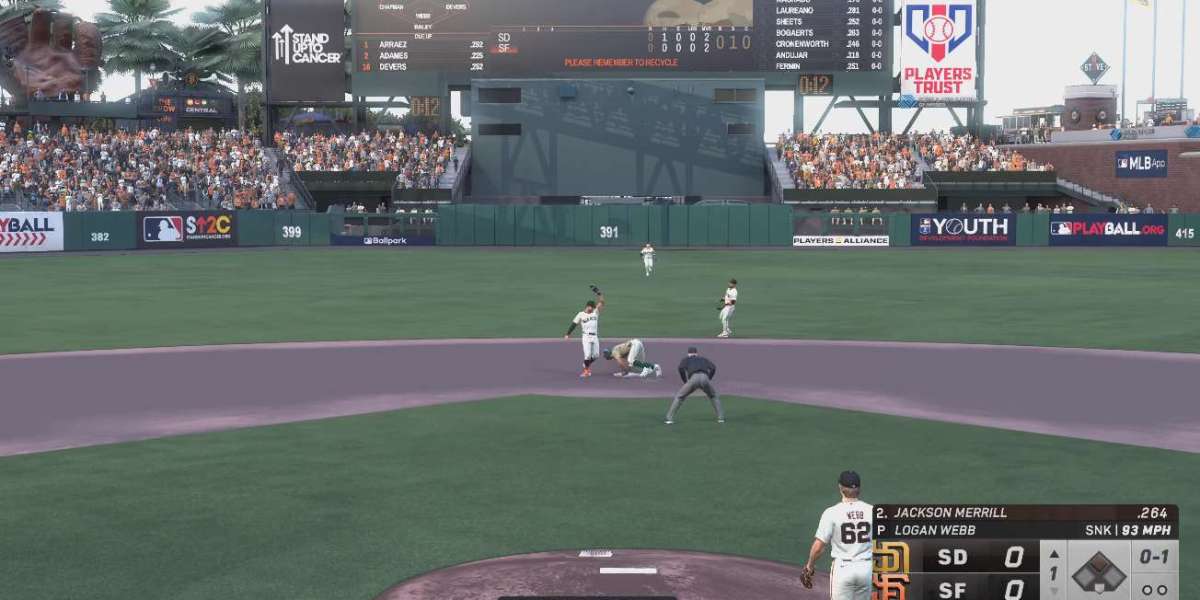

If you want smoother gameplay and better timing at the plate, getting the highest frame rate possible in MLB The Show 26 on PlayStation 5 is worth it.
Here’s the honest truth first: the game does support 120Hz output, but it usually runs closer to 60 FPS or slightly above, not a locked 120 FPS. Still, enabling 120Hz reduces input lag—and that alone can make a big difference when you’re trying to catch a fastball.
Let’s set it up the right way.
Step 1: Set Up Your PS5 for High Frame Rate
Before you even launch the game, fix your system settings.
Enable 120Hz Output
- Go to Settings (gear icon)
- Open Screen and Video → Video Output
- Set 120 Hz Output to Automatic
This allows your console to send a 120Hz signal to your display.
Switch to Performance Mode
- Go to Settings
- Open Saved Data and Game/App Settings
- Select Game Presets
- Choose Performance Mode
This tells your PS5 to prioritize frame rate over visuals in supported games.
If you skip this step, the game may default to higher resolution instead of smoother gameplay.
Step 2: Adjust In-Game Settings
Now launch the game and double-check things inside the menu.
Prioritize Performance
Look for Display or Video Settings and:
- Choose Performance Mode (or similar option)
This ensures the game actually uses the higher refresh rate your console is sending.
Turn Off Background Blur (Recommended)
- Disable Background Blur
This doesn’t technically increase FPS, but it makes hitting feel cleaner and more responsive, especially on higher difficulties.
What 120Hz Actually Does in MLB The Show 26
This is where a lot of players get confused.
- You’re not getting a true 120 FPS lock
- You are getting lower input delay
- Gameplay feels quicker and more responsive
In a timing-based game like MLB, that matters more than raw FPS numbers.
Think of it like this:
You’re not seeing double the frames—you’re reacting faster to pitches.
Hardware Requirements (Don’t Skip This)
If your setup isn’t right, none of this works.
1. You Need a 120Hz Display
- TV or monitor must support 120Hz refresh rate
- Check your display settings—some TVs require “Game Mode” to unlock it
2. Resolution Matters
- 4K + 120Hz is limited
- Best results usually come from:
- 1080p
- 1440p
If you’re serious about performance, dropping resolution is worth it.
3. HDMI Setup
- Use the HDMI 2.1 cable that came with your PS5
- HDMI 2.0 can still do 120Hz at 1080p, but not at higher resolutions
Real Gameplay Benefits (From Experience)
Here’s what actually improves once you enable this:
- Hitting feels easier – especially against high velocity pitchers
- PCI movement is smoother
- Pitch recognition improves
- Less “late” swings on fastballs
If you play Diamond Dynasty or Ranked, this is one of the easiest competitive upgrades you can make.
Common Mistakes Players Make
Avoid these if you want real results:
- Leaving PS5 on Resolution Mode
- Using a 60Hz TV and expecting 120Hz benefits
- Staying on 4K and wondering why nothing changed
- Forgetting to check in-game performance settings